
Workspaces are collaborative environments where you and your colleagues can create and manage collections of dashboards, reports, semantic models, and paginated reports. This article provides an overview of the different roles available in workspaces and explains the permissions and capabilities associated with each role.
Please Note: Cognition360 requires prior approval from your Power BI Admin for all administrative changes before implementation.
You are adding a colleague and see the dropdown of various roles.
Roles let you manage who can do what in a workspace, so teams can collaborate. Workspaces allow you to assign roles to individuals, and also to user groups such as security groups, Microsoft 365 groups, and distribution lists.
To grant access to a workspace, assign one of the following workspace roles to a user group or individual: Admin, Member, Contributor, or Viewer.
All members of a user group inherit the role assigned to that group. If an individual belongs to multiple user groups, they receive the highest level of permission granted by the roles assigned across those groups. When user groups are nested and a role is assigned to a parent group, all members of the nested groups gain the permissions associated with that role. Please note that all capabilities—except for viewing and interacting—require a Power BI Pro or Premium Per User (PPU) license.
Workspace Roles
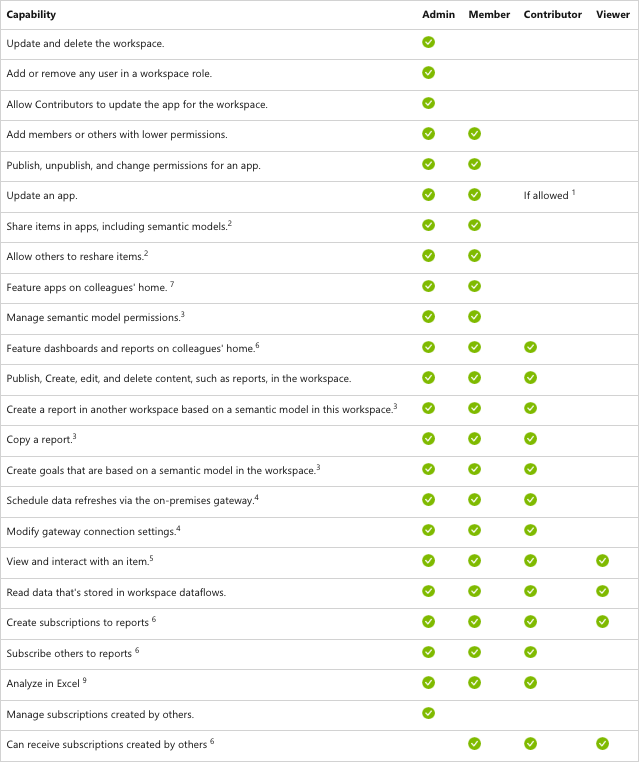
-
Contributor App Permissions
Contributors can update the app associated with the workspace if the workspace Admin grants them this permission. However, they cannot publish a new app or modify the permissions for editing it. -
Sharing Items
Contributors and Viewers can share items within a workspace or app, including semantic models, if the app creator enables the option Allow users to share the semantic models in this app. -
Copying and Creating Reports Across Workspaces
To copy a report to another workspace or create a report in another workspace based on a semantic model in the current workspace, you need Build permission for the semantic model and at least the Contributor role in both the source and destination workspaces.- If you have the Contributor role in the original workspace, you automatically have Build permission through your workspace role.
-
Gateway Permissions
Gateway permissions are managed independently of workspace roles and permissions. Ensure you have the necessary permissions on the gateway. -
Premium Capacity Access
If items are in a workspace within a Premium capacity, you can view and interact with them in the Power BI service even without a Power BI Pro license. -
Subscriptions
Subscribing yourself or others requires a paid Power BI Pro or Premium Per User (PPU) license. If you subscribe others, those recipients must also have a paid subscription unless the items are in a workspace within a Premium capacity. Note that B2B guest users can only subscribe themselves, not others. -
Featured Content
If your admin has enabled this feature. -
Microsoft Fabric Paid Features
If your admin has enabled this feature. -
Viewer Role Permissions
If you want users with the Viewer role to use Analyze in Excel or export underlying data from datasets in the workspace, you must also grant them Build permission on the appropriate datasets.
Please Note:
- You can assign users to roles, either alone or in a group, even if they can't use the role. In other words, you can assign users who don't have Power BI Pro or PPU licenses to a role that requires a license.
- Members can add users to a workspace with lower permissions, but can't remove users from any workspace roles.
- Deleting a user from Microsoft Entra ID doesn't automatically remove their access to Power BI workspaces. This fact is by design to prevent accidental data loss. Even after they're deleted from Microsoft Entra ID, the user's workspace access remains until explicitly removed.